Finding the Wi-Fi password for an Orange Livebox remains one of the most common questions on the operator’s support forums. The code printed on the box’s label is often obscured by dust, changed by a previous occupant, or simply too long to copy by hand.
Livebox 6 and Livebox 7 models now display a QR code directly on their screen, making it easier to connect a new device. For older models, or when the password has been customized, you can retrieve it from the router’s admin interface in just four steps.
1. Access your Orange router’s interface
It all starts with the router’s local address. Open a browser (Chrome, Firefox, Safari) on a device already connected to the Livebox, either via Ethernet cable or Wi-Fi. Type 192.168.1.1 in the address bar and press Enter. This IP address has been the default for Liveboxes for several generations.
If the page doesn’t load, check that your device is connected to the box’s local network and not using a mobile hotspot. Connecting an Ethernet cable directly between your computer and a LAN port on the Livebox will rule out any doubt. If you want to go a step further and change your Orange fiber Wi-Fi password, this same interface is where you’ll start.
The Orange et moi app is an alternative for subscribers who prefer using their smartphone. It provides access to Wi-Fi settings and troubleshooting tools without having to open a browser or remember the router’s IP address.
2. Sign in with the default credentials
The admin interface requires a password that is different from your Wi-Fi password. These two credentials serve different purposes: the first protects the router’s configuration, while the second encrypts communications between your devices and the box. France’s national cybersecurity assistance agency, Cybermalveillance.gouv.fr, also recommends never using the same password for both, to limit the impact if your Wi-Fi password is exposed.
On most Liveboxes, the default admin password is printed on the label attached to the bottom or side of the box. It usually consists of the first eight characters of the original Wi-Fi security key. If you’ve changed this password and can’t remember it, press and hold the reset button on the back of the box to restore the factory settings, including the admin password.
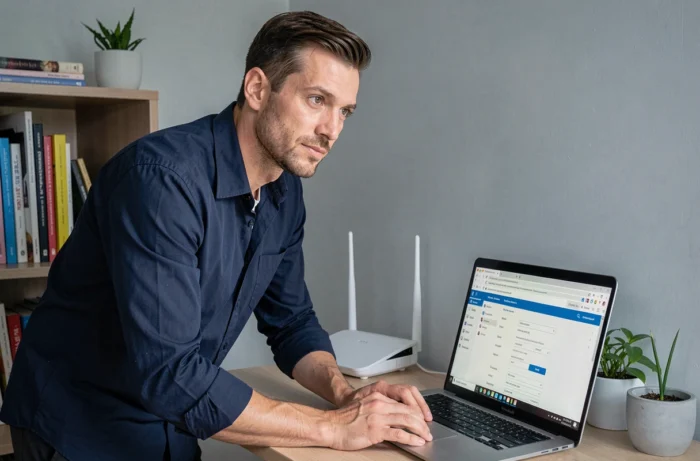
Keep in mind that a full reset also erases any custom settings, such as port forwarding or a changed network name. Make a note of them before pressing the button.
3. Find the Wi-Fi settings in the Livebox interface
Once you’re signed in to the interface, the steps vary depending on your Livebox model. The admin panel usually displays several tabs or tiles. Here’s where to look for each version:
- On Livebox 4 and Livebox 5, click the “My Wi-Fi” or “Wi-Fi” tab in the main menu. The security key appears under “Wi-Fi network” or “Security.”
- On Livebox 6 and Livebox 7, go to “Wi-Fi settings.” Tap the eye icon to reveal the key, which is hidden by default.
- On Flybox or Airbox 4G models, the web interface is different: the “WLAN” or “Wireless” menu contains the SSID and its associated password.
The SSID is the name of the network that appears on your devices. If you’ve customized it, it won’t start with “Livebox-” followed by an identifier. Check the name to make sure you’re viewing the right network before copying the key.
4. Retrieve or reset your Wi-Fi network password
There are two possibilities at this stage. If the key displayed in the interface is the one you were looking for, simply write it down or copy it to each device you want to reconnect. A password manager on your phone or computer means you won’t have to look it up again.
If you’d rather replace the key with a combination that’s easier to remember, you can edit the “Security key” or “Wi-Fi password” field directly on the same page. Changing the Wi-Fi key means reconnecting every device in your home with the new password: phones, tablets, printers, and smart devices. Set aside a few minutes for this, especially if your home has a lot of connected devices.
These guidelines can help you create a strong password that’s still easy to use:
- At least twelve characters, combining uppercase and lowercase letters, numbers, and special characters.
- Avoid dictionary words and predictable sequences (“123456,” “password”).
- Use a password that’s different from your admin interface password, as recommended by Cybermalveillance.gouv.fr.
The Wi-Fi QR code on Livebox 6 and 7 remains valid after you change the key, as long as you let the box update. Scan it with your phone’s camera to avoid typing errors when reconnecting.
One final point that’s rarely mentioned: if your Livebox broadcasts on two bands (2.4 GHz and 5 GHz) with separate passwords, check both in the interface. Some older devices can only detect the 2.4 GHz band and will need its corresponding password.